

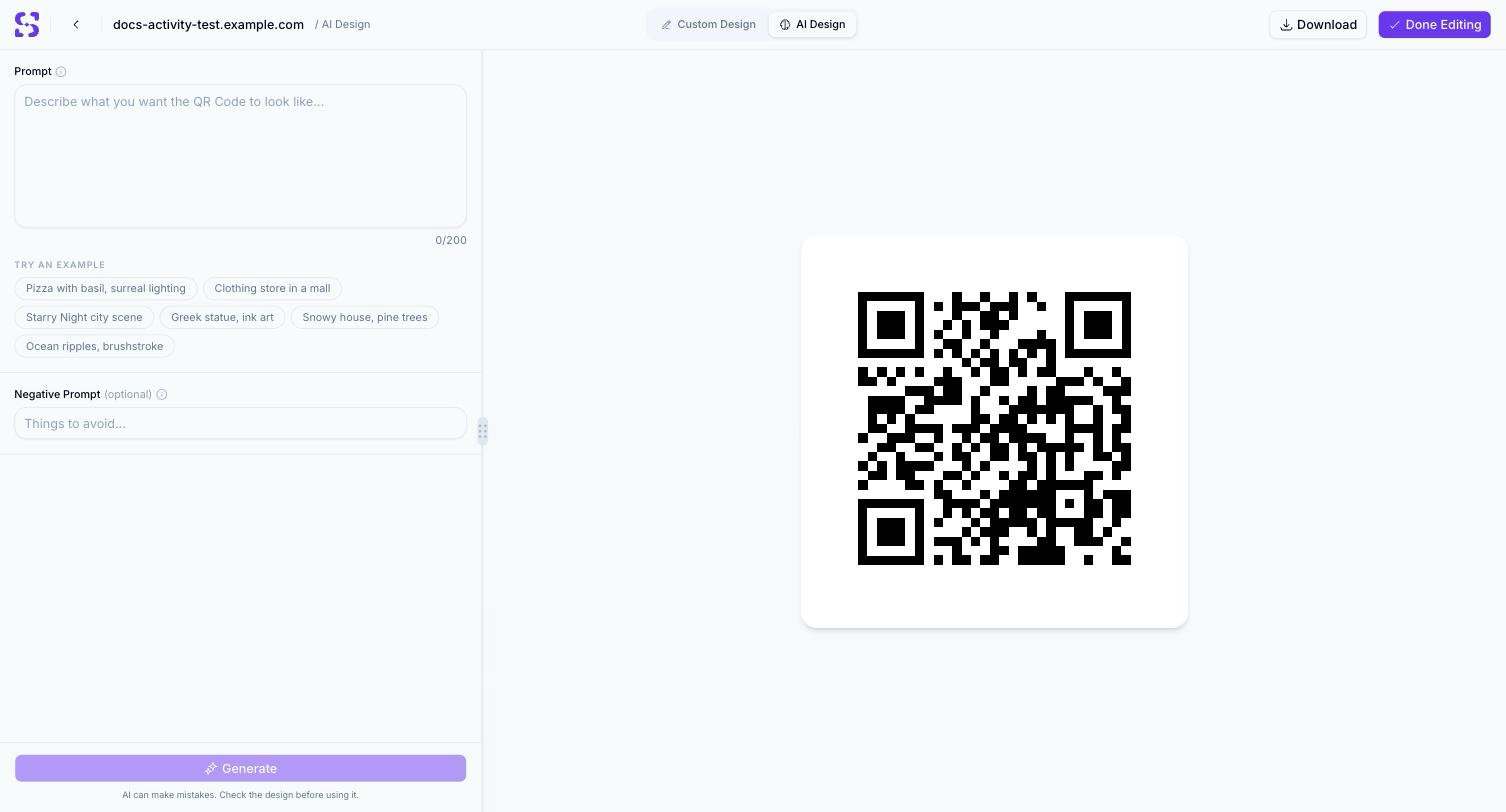
The AI Design prompt screen, before any prompt has been submitted
Generating a design
1
Describe the background you want
Type a description into the Prompt field (up to 200 characters), or click one of the six example chips — Pizza with basil, surreal lighting, Clothing store in a mall, Starry Night city scene, Greek statue, ink art, Snowy house, pine trees, or Ocean ripples, brushstroke — to use it as-is.
2
Optionally add a Negative Prompt
Use the optional Negative Prompt field to describe what to avoid in the generated image.
3
Generate
Click Generate. Two variations are produced in parallel, each shown as its own Generation Result card with a per-card status.
Related
- Custom QR Code design — the manual (non-AI) design editor this tab sits alongside, including its own Smart Design brand-color generator
- AI Studio — a different AI feature that generates a whole landing page, not a QR Code background image
- Test QR Code — scan-verify an AI-generated design before using it, since a busy background can hurt scannability