

/qr/health, or via the Health Center button in the QR Codes list header.
Previously, diagnosing “my QR Code isn’t working” meant checking three separate places — the QR Code list, the forms module, and custom domain settings. Health Center runs those checks across your whole account and presents everything on one screen, ranked by how much real traffic each problem is costing you.
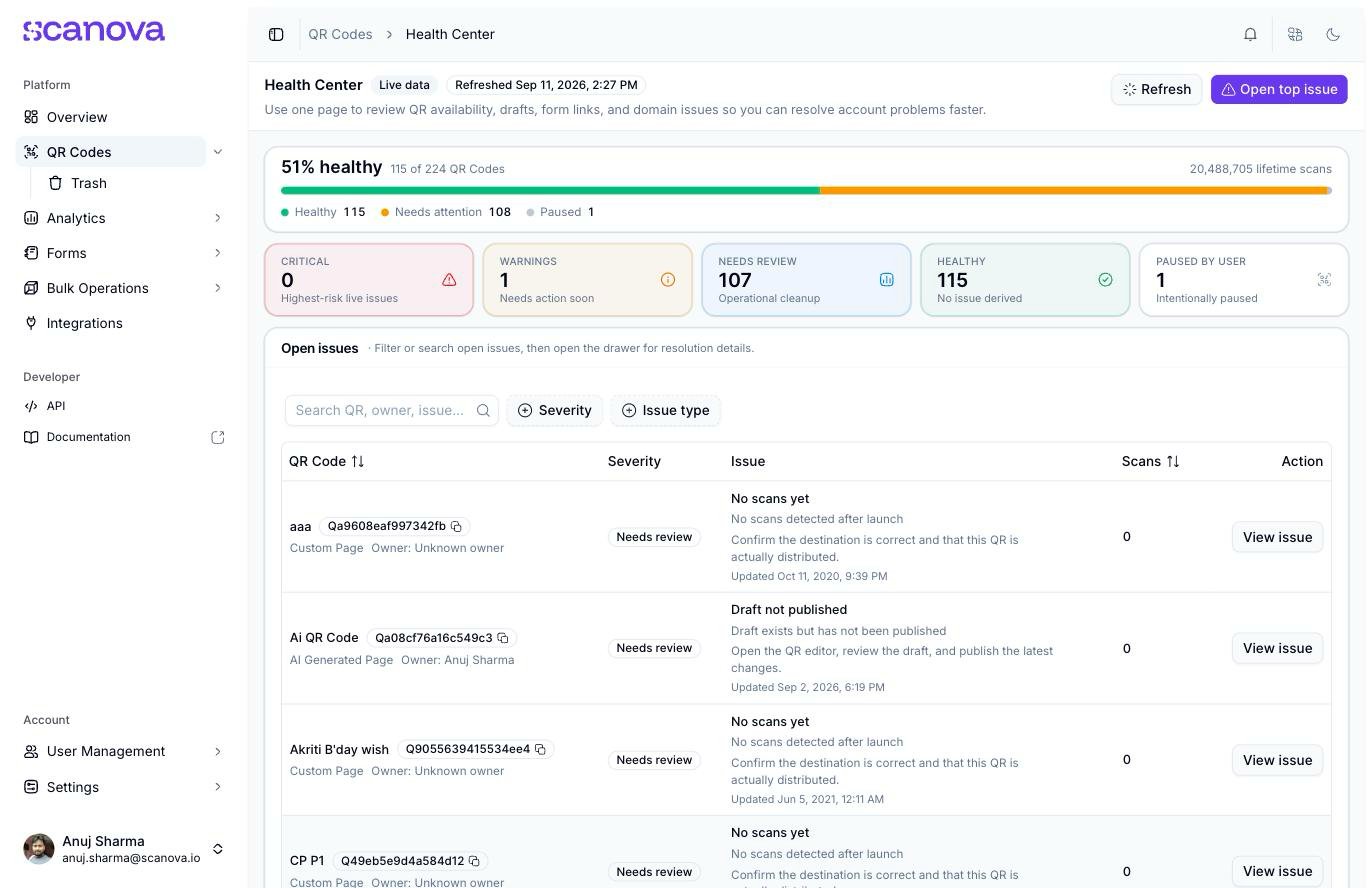
QR Health Center, showing a live account with open issues
Overview and metrics
At the top, a summary bar shows the percentage of your QR Codes currently healthy, out of your total count, alongside your total lifetime scans. The bar is colour-coded:
Below it, five metric cards break the same picture down by category:
- Critical — the highest-risk live issues
- Warnings — needs action soon
- Needs Review — operational cleanup, lower urgency
- Healthy — QR Codes with no open issue
- Paused by User — intentionally deactivated QR Codes, excluded from the issue counts above (a paused QR Code isn’t “unhealthy,” it’s just off on purpose)
The five cards are not designed to add up to your QR Code total. Critical, Warnings and Needs Review count issues; Healthy and Paused by User count QR Codes. A single QR Code can carry more than one issue at the same time.
The open issues table
Below the metrics, a filterable, searchable table lists every open issue: which QR Code (name and ID), its severity, the issue type and a short description, its lifetime scan count, and a View issue button. Filter by Severity or Issue type, or search by QR Code name, QR Code ID, owner, or issue text. Each filter label carries a count, so you can see the shape of your problems before applying anything. Issues are sorted Critical → Warning → Needs Review, and within each tier by scan volume, highest first. The top row is therefore always the costliest problem on the account — which is exactly where the Open top issue button jumps to. Click View issue to open a detail drawer for that specific QR Code: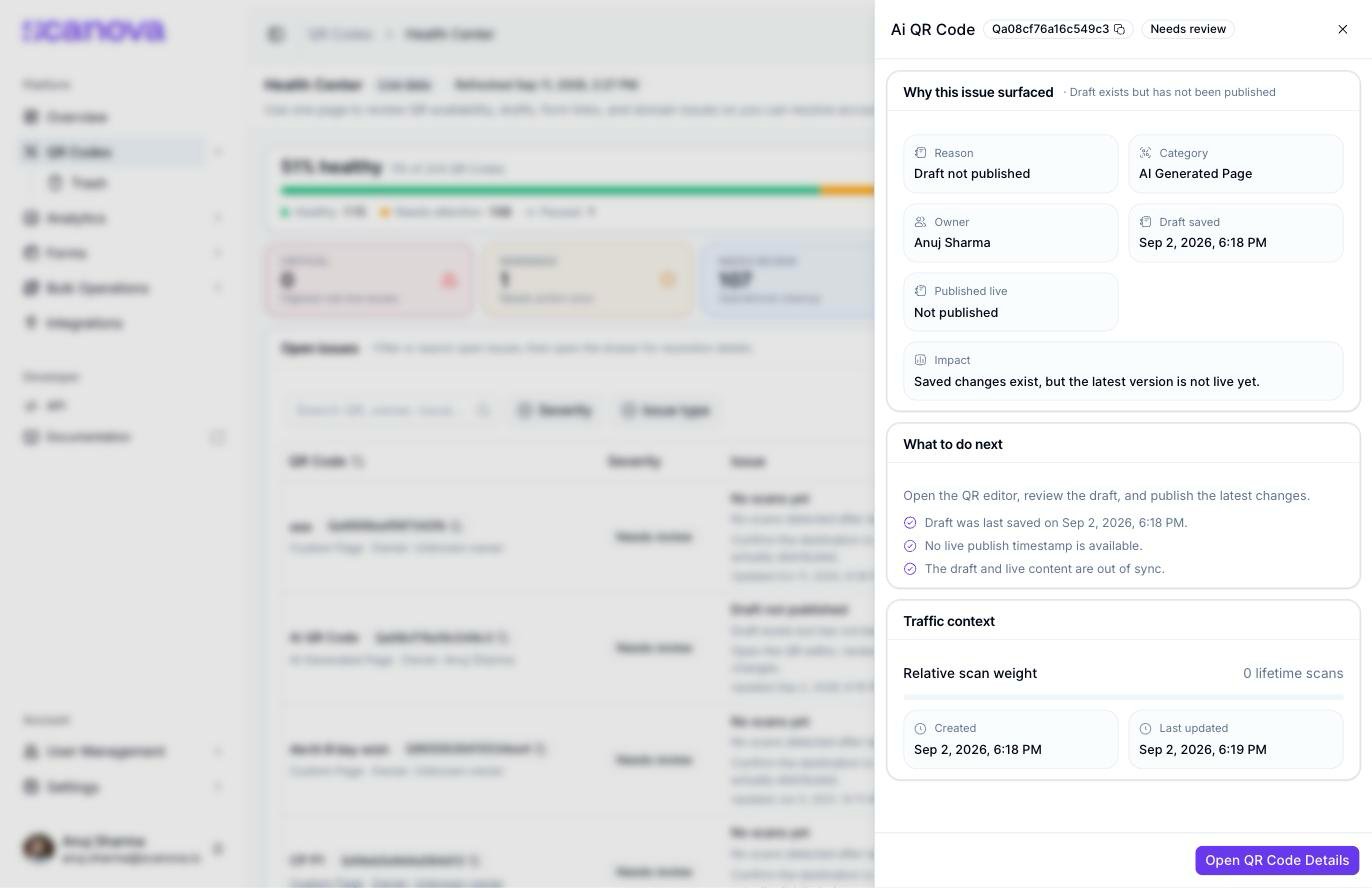
Issue detail drawer for a single QR Code
- Why this issue surfaced — the reason code, category, owner, and issue-specific fields (for example, draft-saved and published-live timestamps for a publishing issue, or CNAME/TXT verification status for a domain issue), plus a plain-language impact statement
- What to do next — a short resolution instruction and a checklist of the specific conditions the health check found
- Traffic context — the QR Code’s relative visit weight and created/last-updated timestamps, so you can judge how urgent a fix really is
Health monitor: the underlying checks
Further down, the Health monitor section lists the individual live checks Health Center runs, each as its own card. Each card shows how many QR Codes it currently affects, or “All clear” if none.
Click any card to open a drawer describing what that specific check looks for and listing the affected QR Codes (or confirming none are affected):
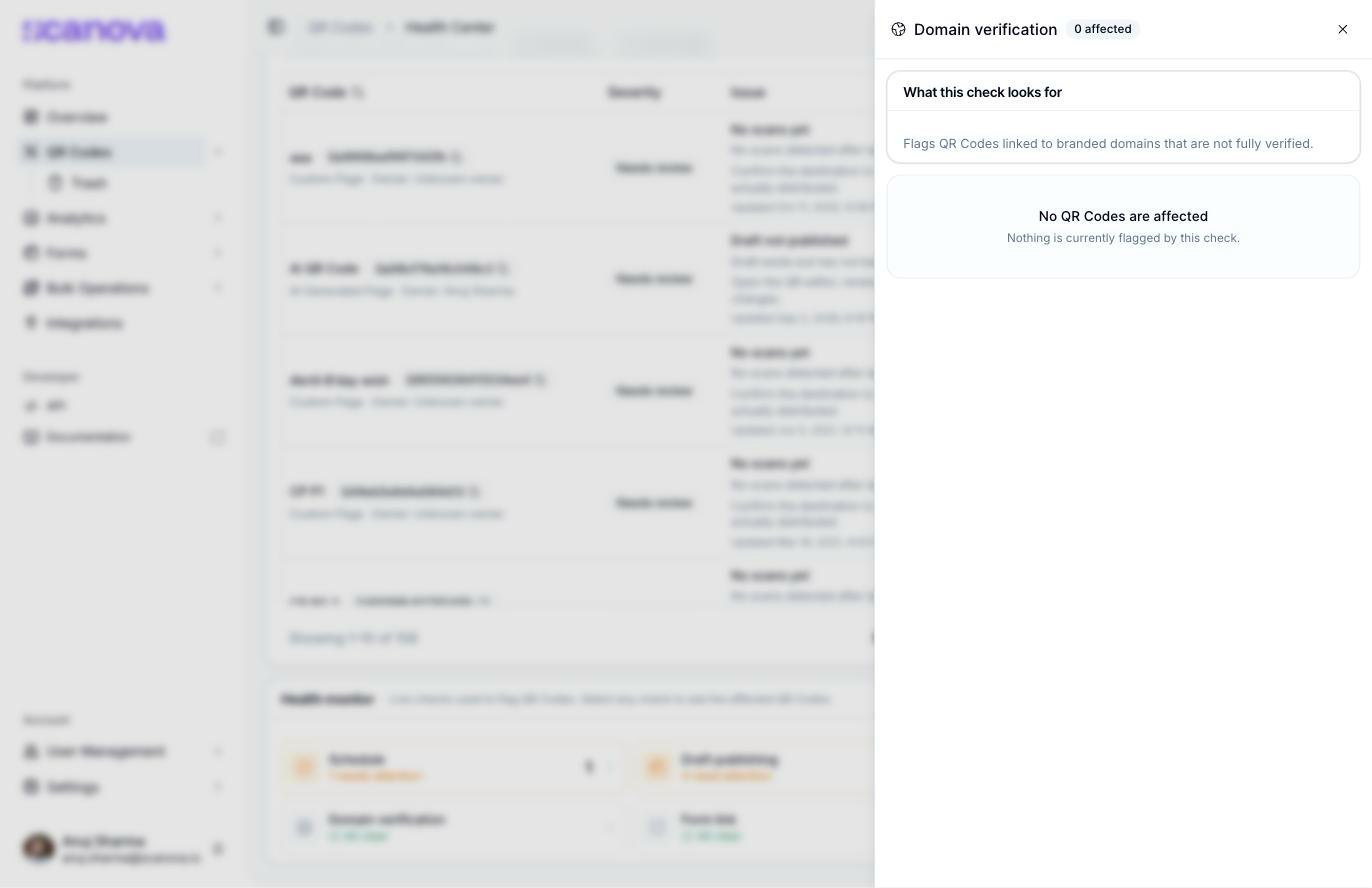
A monitor-signal drawer for a check with nothing currently flagged
How severity is calculated
Severity is not a fixed scan threshold. It is calculated against your own account’s traffic distribution, so the ranking stays meaningful whether you have 50 scans or 500,000. The principle: a problem is urgent in proportion to how many real people it affects. A broken QR Code nobody scans is housekeeping. A broken QR Code carrying most of your traffic is an emergency.
How the ranking is built:
- Every active QR Code’s lifetime scan count is collected.
- Only QR Codes with actual traffic shape the distribution, so a large number of zero-scan codes can’t drag the thresholds down artificially.
- Your account’s own median and top-tier cut-offs are calculated from that set.
- Each flagged QR Code is placed against those cut-offs to get its severity.
Two deliberate refinements
Small accounts are capped at Warning. Until an account has at least ten QR Codes carrying real traffic, there isn’t enough data to rank fairly — so no issue is raised to Critical. This is why a new or lightly-used account often sees mostly Needs Review and Warning issues rather than a wall of red.
Draft not published never escalates to Critical. A stale draft doesn’t break a scan — the visitor simply sees older content — so it is capped at Warning even on your busiest QR Codes, and never outranks a genuinely broken experience.
Scope and access
- Paused QR Codes are excluded from every check. Pausing is treated as a deliberate decision, so a paused code never generates an issue. It still appears in your account totals as Paused. Resume it to bring it back under monitoring.
- The page adapts to your permissions. If your role doesn’t have access to Forms or Custom Domains, you simply see fewer checks — the page loads and works normally with the remaining ones. This is why a colleague may see more checks than you do.
- Anyone who can view QR Codes can open Health Center.
Empty and edge-case states
Health Center adapts its messaging to your account’s actual situation rather than showing a generic empty table:- No QR Codes yet — the page invites you to create your first one instead of showing an empty issues table
- Everything paused — Health Center explains that paused codes are excluded from issue counts by design, with a link back to the QR Code list
- All clear — if you have QR Codes and none currently have an open issue, the page confirms your account is healthy and offers quick links to the QR Code list, forms, or domains depending on what you have access to
- Filters exclude everything — if your search or filter combination matches no issues, the page prompts you to widen the search rather than reading as “no problems found.”
Related
- QR Code scheduling — the activation/deactivation rules behind the Schedule health check
- Custom domains — CNAME/TXT verification is what the Domain verification health check monitors
- Publishing — draft vs. live state is what the Draft publishing health check compares
- Building a form — broken form links are what the Form link health check flags