The block based landing page editor: how a page gets assembled from blocks, previewed at mobile, tablet and desktop widths, styled with a theme, and published.
The page builder is Scanova’s block-based editor for landing pages: add content blocks (headings, images, video, maps, contact details, forms, and more), arrange them on a canvas, theme the result, and publish it to the QR Code’s live URL. Every “Build a Page” QR Code — and every Custom Page, Restaurant, Wedding, Event, and similar category — opens into the same editor.
The sidebar item for your QR Codes is labeled QR Codes, not “My QR Codes.”
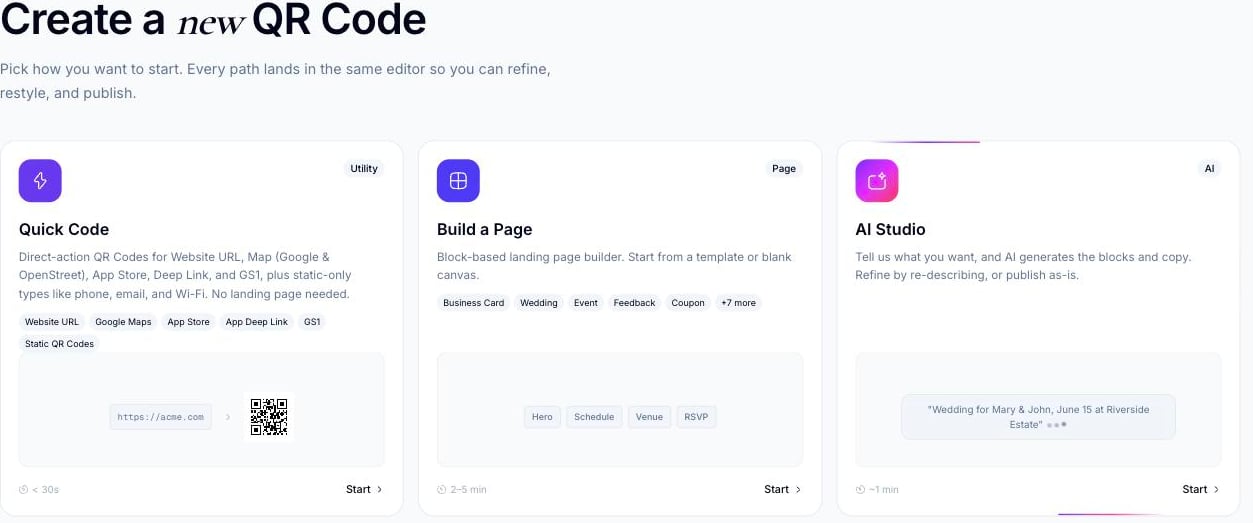
From the sidebar, click Create QR Code (or go to /qr/create). You land on a picker with three cards: AI Studio (“Tell us what you want — AI generates the blocks and copy”), Build a Page (“Block-based landing page builder. Start from a template or blank canvas”), and Quick Code (“A direct QR Code for a URL, phone, email, Wi-Fi, or plain text. No landing page”). Every path lands in the same editor.
The Create a new QR Code picker — AI Studio, Build a Page, and Quick Code
2
Click Build a Page
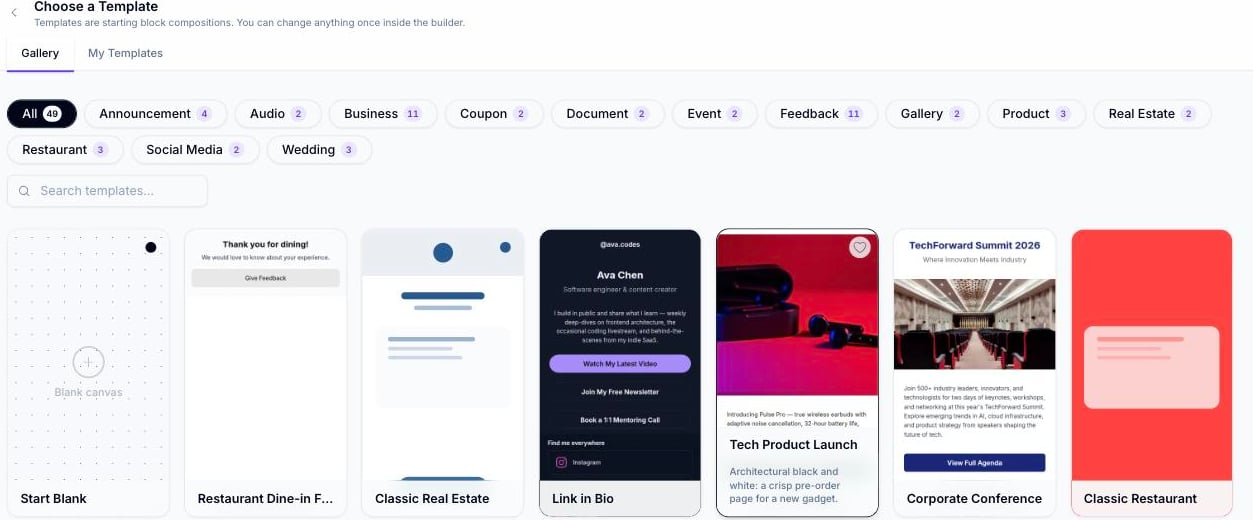
This opens Choose a template (/qr/new) — a gallery filtered by category (Business Card, Restaurant, Wedding, Event, Product, Social Media, and more), plus a Start Blank option and a My Templates tab for anything you’ve saved as a template.
The Choose a template gallery, filtered by category
3
Pick a template or start blank
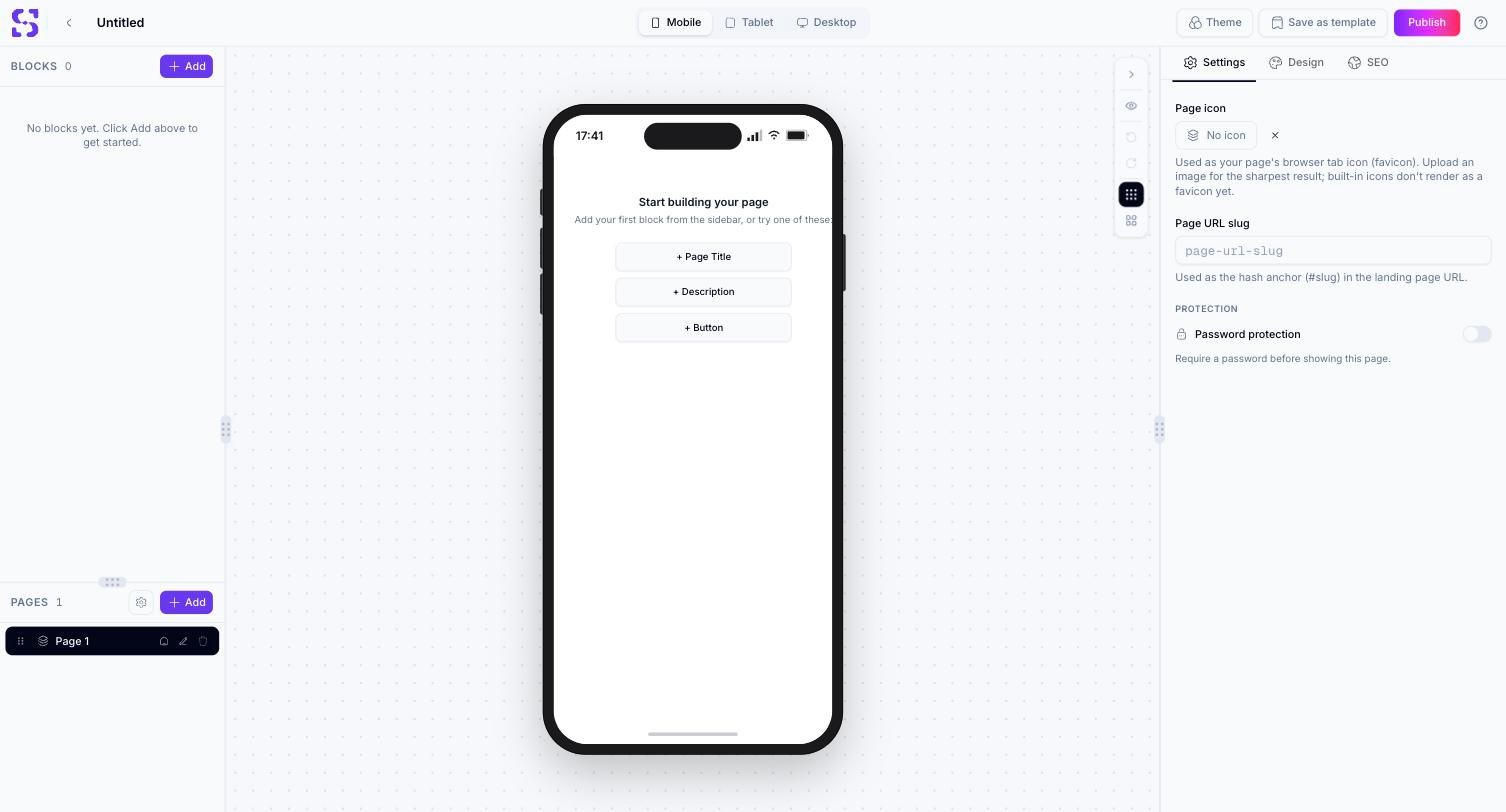
Picking a template or Start Blank opens the editor itself (/qr/new/landing), pre-populated with that template’s blocks or empty and ready for you to add your first block.
To edit a page you already built, go to QR Codes in the sidebar and click the pencil/edit icon on its row, or open the QR Code’s detail page and click Edit Page.
Only Dynamic QR Codes with a landing page (category) support the page builder. Direct-action Quick Codes (URL, phone, email, Wi-Fi, plain text) have no page to edit — see Quick Code vs. full Page.
A live preview of the current page inside a phone, tablet, or desktop frame. Click any block to select it and edit it in the right inspector. A small floating toolbar sits in the canvas’s top-right corner — this is where Undo and Redo live (not in the header), alongside a preview toggle and a couple of layout/grid controls.
With a block selected, the tabs are Content, Design, and Event Tracking
With nothing selected, the tabs are Settings, Design, and SEO for the page itself — this is also where you’ll find the page’s Password protection toggle (see Page-level password protection)
The header across the top of the editor provides: Back, a device switcher (Mobile / Tablet / Desktop), Settings (opens Page Settings, including navigation style), Theme, Save as template, Publish, and a Help button. Undo/Redo are not here — see Keyboard shortcuts and the canvas toolbar described above.
Your edits save automatically as you work — this is a real server-backed save, not just a browser-local draft. See Publishing for exactly what that means and how the draft/published states work.
Page-builder content is created the same way as any other landing-page QR Code through the API: POST /qr/ with a category ID for a landing-page category (for example 9 for Custom Page, 14 for Wedding, 20 for Event, or 25 for Restaurant) and an info payload shaped for that category. See Create QR Code for the full request schema and Category List for every category ID.
The block-by-block content you assemble in the editor (pages, blocks, and their settings) isn’t something you construct directly through this endpoint — it’s stored and edited through the builder UI itself. The API’s info payload controls the QR Code’s category and top-level configuration, not individual block content.