Reset a forgotten Scanova password from the login screen, what the reset email contains, and what to do if that message never actually turns up for you.
If you’ve forgotten your password, you can reset it from the login page using a one-time code sent to your email — no need to contact support.
1
Start the reset
On the login page, select Forgot password? next to the password field. This takes you to /auth/forgot-password.
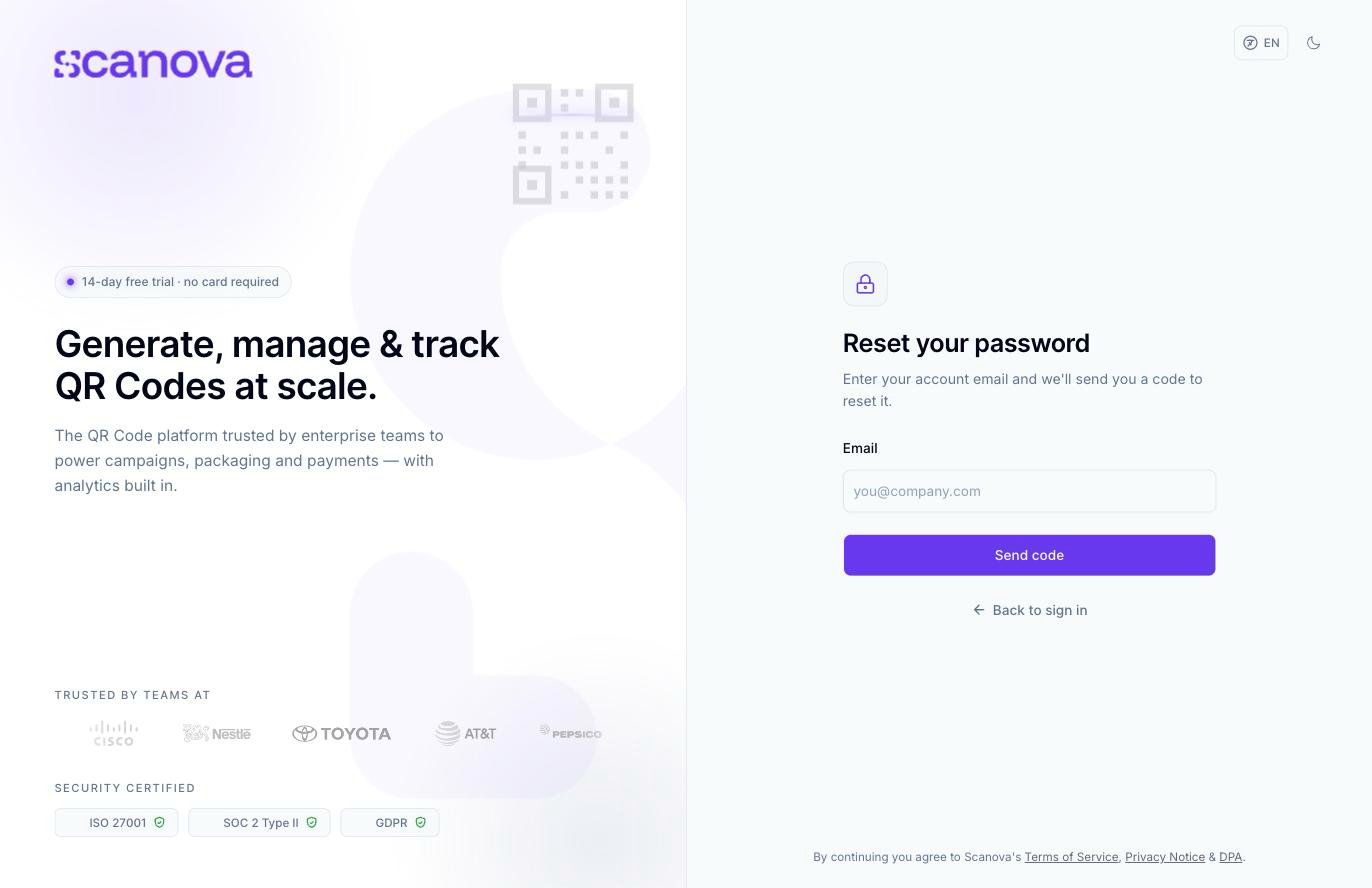
The reset-password email entry step
Enter your account’s email address and select Send code.
2
Enter the code from your email
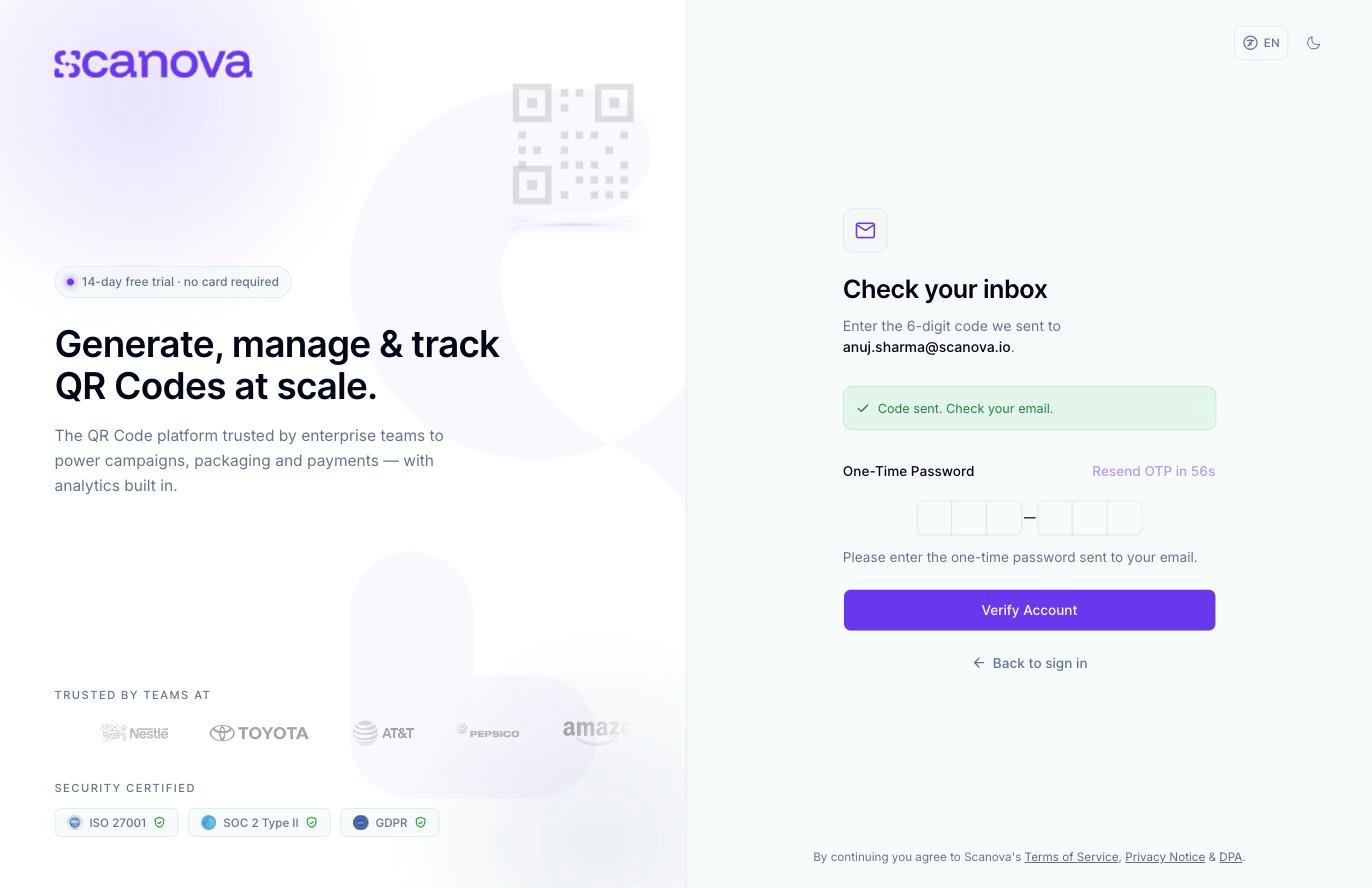
Scanova emails a 6-digit one-time code to that address. Enter it on the next screen.
The one-time code entry step, after requesting a reset code
If the code doesn’t arrive, wait for the countdown next to the code field and select resend. Select Verify Account once you’ve entered the code.
3
Set a new password
After the code is verified, you’re taken to a final screen to choose and confirm a new password for your account.
Resetting your password this way doesn’t affect any multi-factor authentication methods or passkeys on your account — those stay enrolled, and you’ll still be asked for them at your next sign-in if enabled.
Scanova also has a separate, direct-link password reset route (/auth/password/reset/confirm/…) tied to a reset link rather than a typed code. The Forgot password? flow described above — email address, then a 6-digit code — is the one you’ll reach from the login page.