Create Scanova QR Codes directly inside Google Docs, Slides, and Sheets with the Scanova add-on, without leaving the document you happen to be writing.
The Google Docs integration is the Scanova QR Codes add-on, distributed through Google Workspace Marketplace — not an OAuth connection. Nothing syncs back into Scanova; it lets you generate a QR Code without leaving Docs, Slides, or Sheets.
This is a Design category integration, labeled “Google Docs Add-on” in the catalog since the same add-on works across Docs, Slides, and Sheets. It has no “Active connection” state and doesn’t count against your integration connection quota — clicking through it in Scanova just opens the Workspace Marketplace listing.
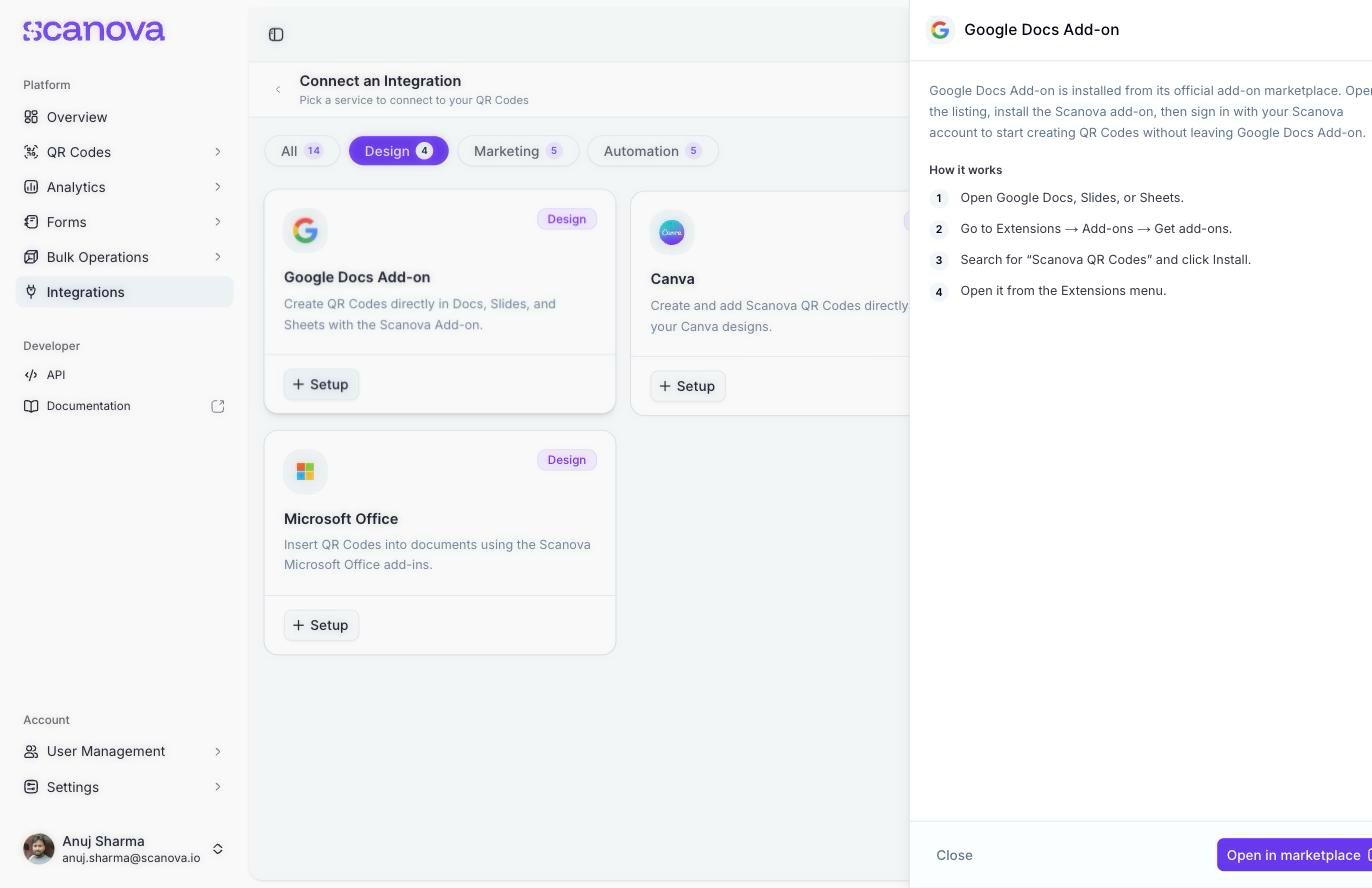
In the Scanova dashboard, go to Integrations in the left sidebar, click Add Integration, then filter to the Design category. Click Setup on the Google Docs Add-on card to open its setup panel.
The Google Docs Add-on setup panel in Scanova, with the manual install steps and the link to Google Workspace Marketplace
3
Install from Docs, Slides, or Sheets directly
Alternatively, install it from inside any of the three apps:
Open Google Docs, Slides, or Sheets.
Go to Extensions → Add-ons → Get add-ons.
Search for Scanova QR Codes and click Install.
Open it from the Extensions menu.
4
Generate a QR Code
With the add-on open in the sidebar, sign in with your Scanova account, then create or insert a QR Code straight into the document, slide, or spreadsheet you’re working on.
Use this when a document, presentation, or spreadsheet is where the work already happens — a proposal, a slide deck, an inventory sheet — and you want a live Scanova QR Code embedded in it instead of pasting in a static image generated elsewhere.