Describe the landing page you want and let AI Studio generate its blocks and copy, then refine that draft in the page builder before you publish it live.
AI Studio generates a landing page from a plain-language description. Instead of adding blocks one at a time, you describe the page you want in a chat-style sidebar, and the AI drafts it — asking clarifying questions first if your description is too open-ended, or drafting directly if it isn’t.
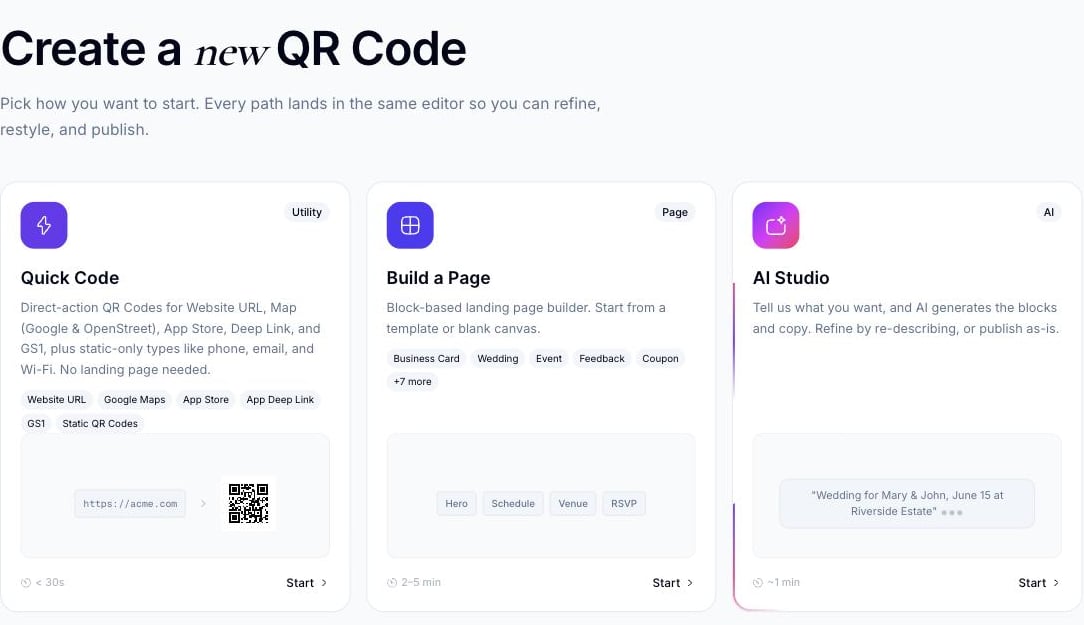
From the dashboard, click Create QR Code. On the “Create a new QR Code” screen, click Start on the AI Studio card.
The Create QR Code picker, with AI Studio unlocked (Start, not Upgrade)
2
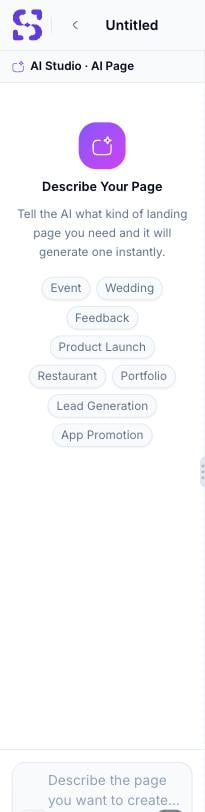
Describe your page
Type a description of the page you want into the sidebar’s chat input, for example:
“A wedding page for Sarah and James, June 20 at Rosewood Gardens. Include the event schedule, venue map, and an RSVP form.”
The AI Studio entry screen, opened from Create QR Code
3
Press Enter
The AI responds in the chat sidebar. What happens next depends on how specific your prompt was:
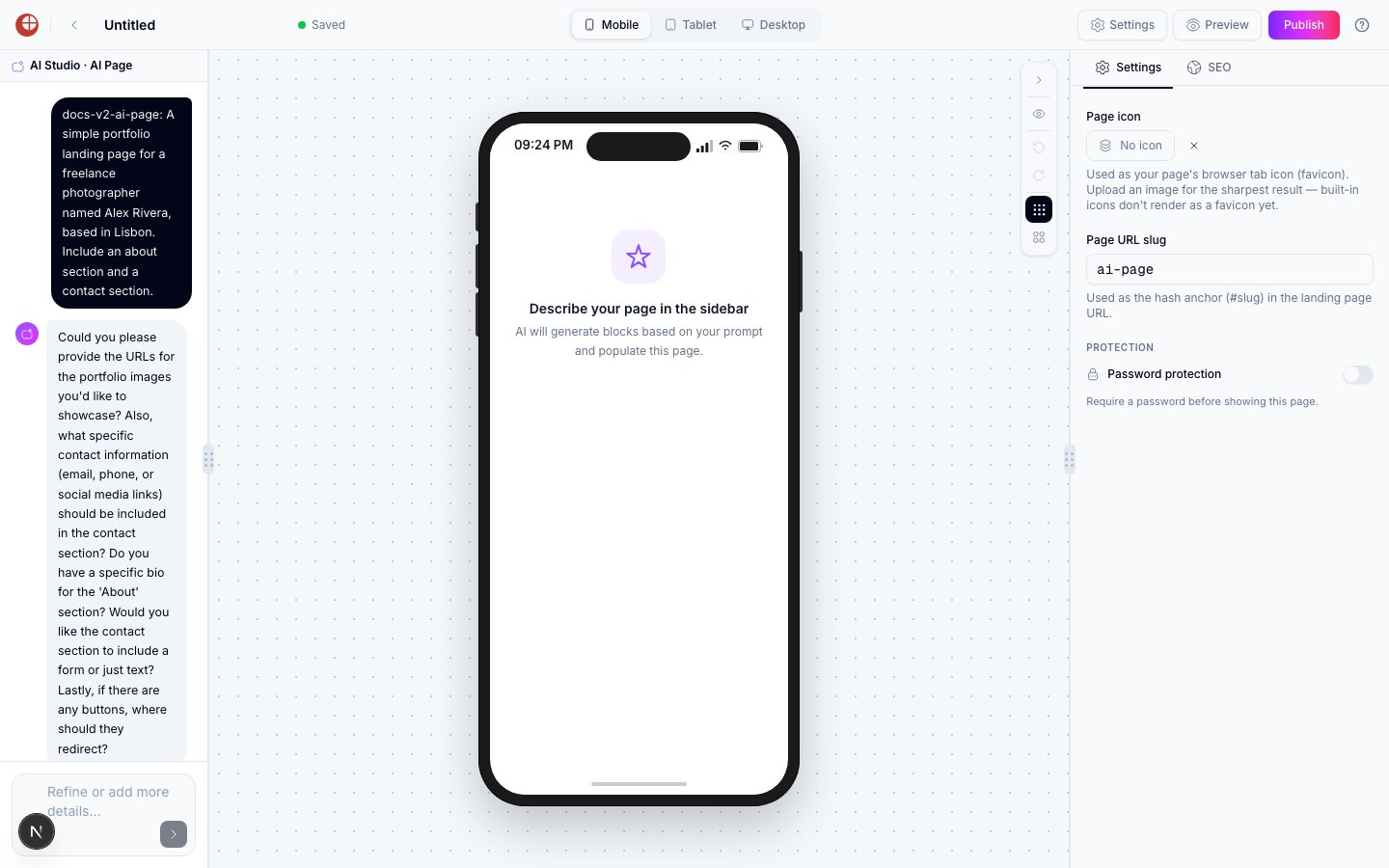
If your prompt leaves out details the AI needs (images, contact info, specific copy), it asks clarifying follow-up questions instead of generating right away
If your prompt is specific enough, it responds with a confirmation (e.g. “Your AI-generated landing page preview is ready!”) once the draft is built
The AI asking clarifying questions instead of generating immediately
Don’t assume a single message always produces a finished page in one step. A vague prompt gets a round of clarifying questions first — reply with the missing details to continue.
Once a page is generated, the chat input stays open — send follow-up messages to adjust the result (for example, “change the colour scheme to navy and gold,” or “add a section for accommodation recommendations”). Each message produces a new version.
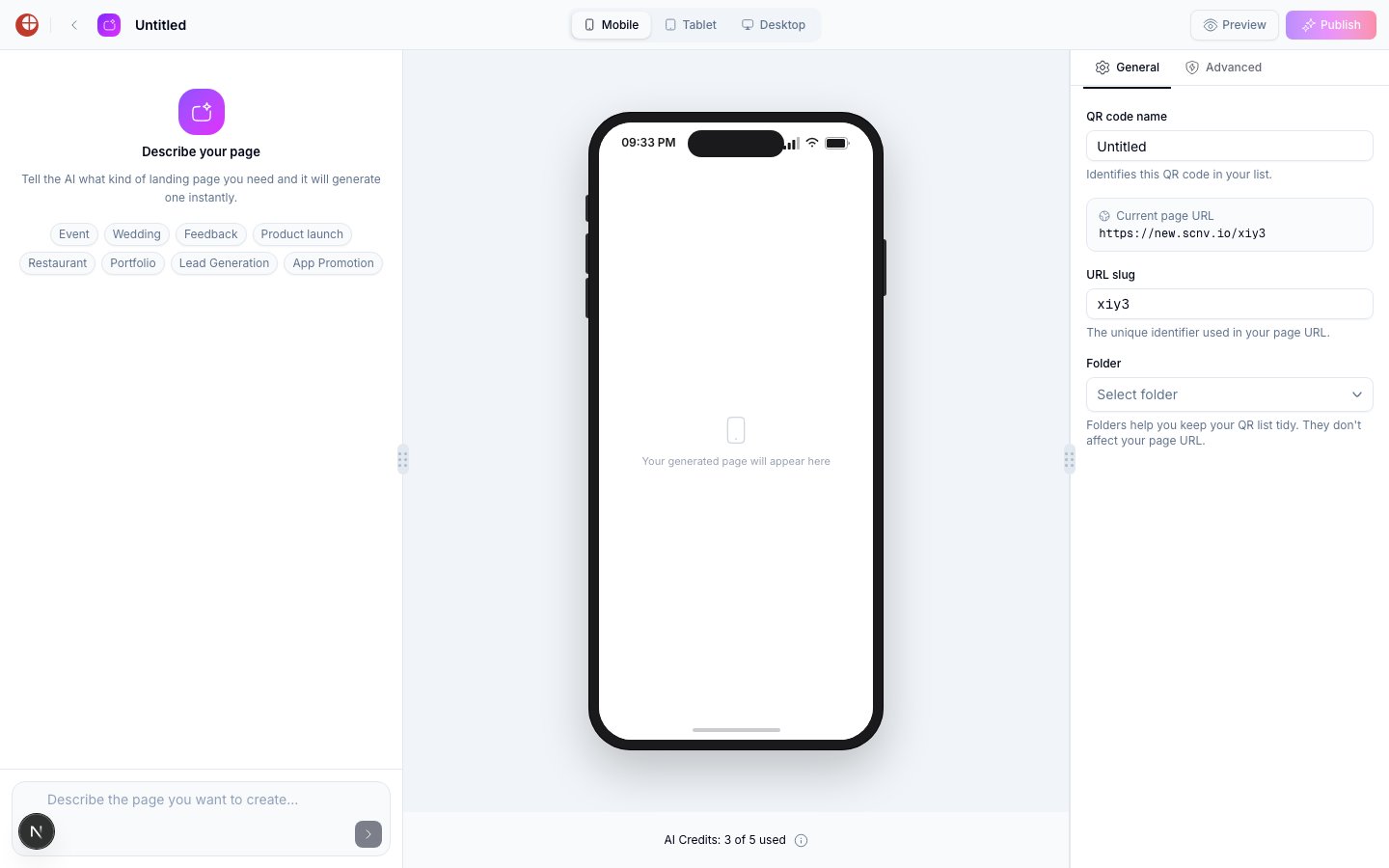
Generation is metered. The chat panel shows a running counter — AI Credits: n of 5 used in this account’s case — that increments each time you submit a prompt (including follow-up refinements). Watch this counter if you’re working with a limited grant.
Once you’re inside a generation session, the header offers Preview and Publish, and a right-hand panel with General and Advanced tabs covering the QR Code name, its current page URL, the page’s URL slug, and folder assignment — separate from the multi-page block builder’s own Settings/Theme controls.
The AI Studio editor's settings panel for an in-progress AI-generated page
The live mobile preview in this panel renders through the same published-page domain used by the rest of the product. In some environments that preview domain may be unreachable or gated, in which case the phone mockup stays blank even after a successful generation — this doesn’t necessarily mean generation failed; check the chat’s own confirmation message and the AI Credits counter instead.
When the page looks the way you want it, click Publish in the header and confirm in the publish panel to make the page live. The AI-generated QR Code uses the same dynamic QR Code system as the block-based builder — you can change the page content at any time without reprinting the QR Code.
To return to an AI-generated page, open its QR Code from QR Codes and click Edit (not Edit Design, which opens the QR Code’s visual pattern/logo designer instead).
Reopening an AI-generated page’s editor starts from the default Describe your page prompt — the earlier chat thread and generated draft aren’t restored. Treat the AI chat as session-scoped rather than something you can resume on a later visit.
There is no separate “AI page” type you can pick from the ordinary “Add a page” sheet inside a multi-page QR Code’s block builder. AI Studio is its own top-level creation method, reached only from Create QR Code → AI Studio as described above — not a page type alongside General, Audio, Gallery, Documents, and Intro Page.
Access to AI Studio is controlled by an account-level quota rather than by plan tier alone, so availability can differ between two accounts on the same plan. If the entry card shows Upgrade rather than Start, contact Support to confirm your account’s entitlement. Once the quota is present the feature works end to end, metered through the AI Credits counter described above.