

Selecting a reason
Click Delete Account to open the Delete Account drawer. Select a reason is required before you can continue; an optional Additional comments box lets you add detail.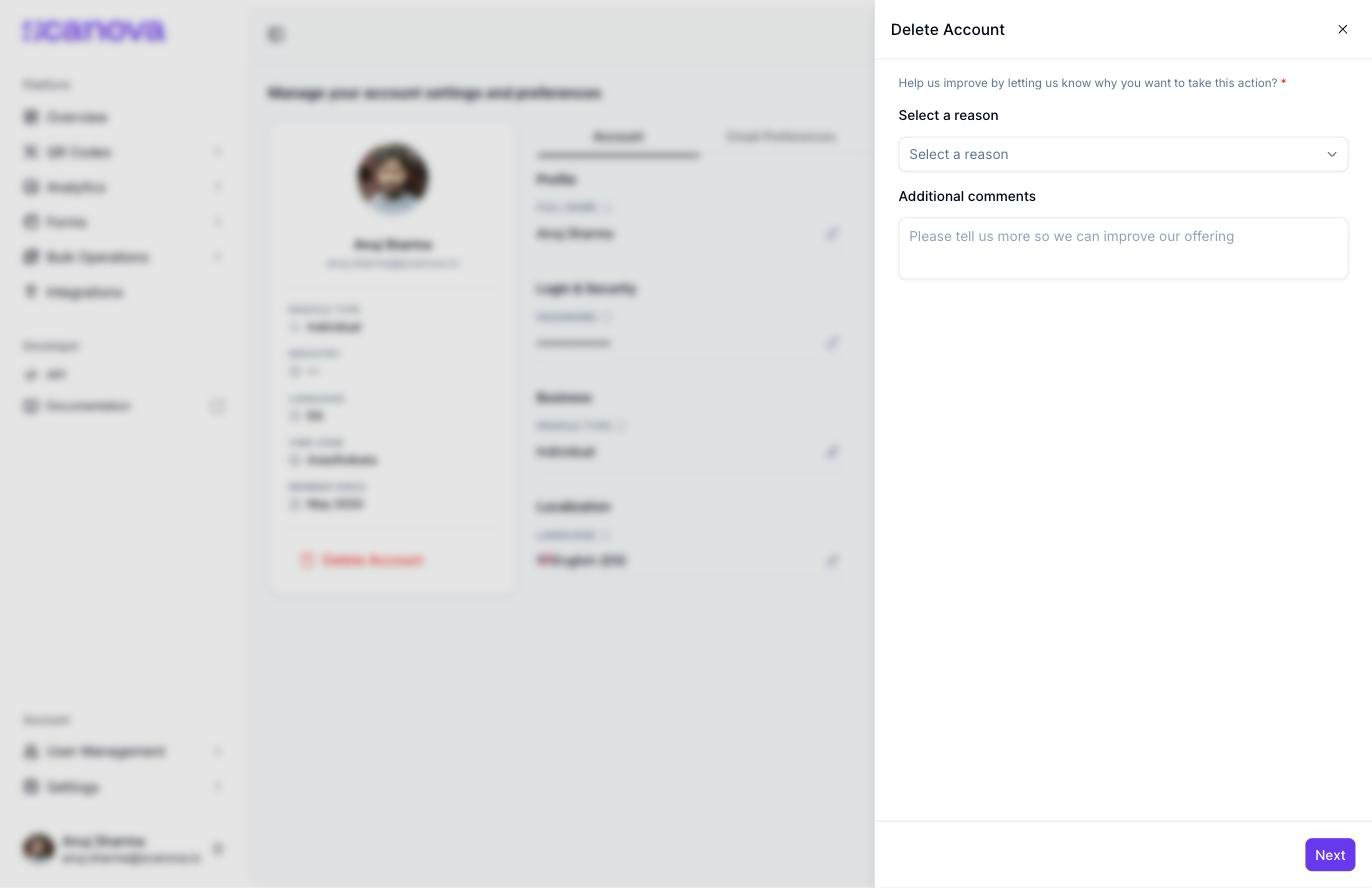
The Delete Account drawer's reason-selection step
- Product is complicated/not working as expected
- Didn’t get the results I hoped for with QR Codes
- Plans are too expensive
- Found a better alternative
- No longer required and want to delete my data
- Other (please specify below)
The retention screen
Which screen appears next depends on the reason you picked:-
Plans are too expensive shows A special discount, just for you — a plan/billing-frequency selector offering up to 40% off, with Avail Discount Now (switches your plan instead of deleting) and Continue with Deletion buttons
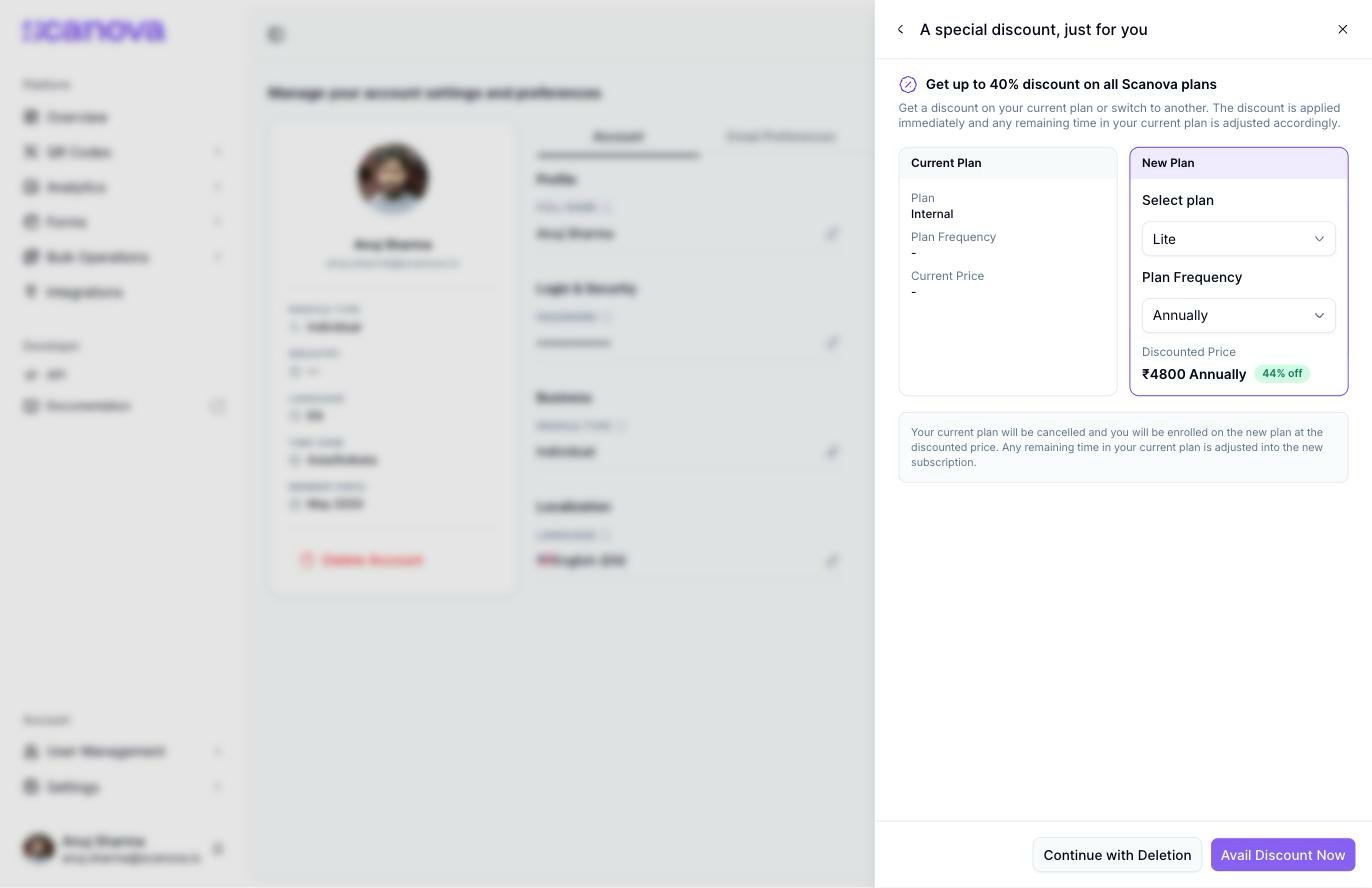
The discount retention screen shown for the 'Plans are too expensive' reason
-
Every other reason shows We are sorry to see you go instead — a reminder of what you’d lose (Dynamic QR Codes, Custom QR Codes, QR Code Tracking & Analytics, Lead Generation, High-resolution QR Codes, Mobile Landing Page Design, with an Explore All Features link), a data-security assurance (ISO 27001:2013, GDPR, and SOC 2 compliance), a red warning that the deletion is permanent and can’t be undone, and Cancel / Delete Account buttons
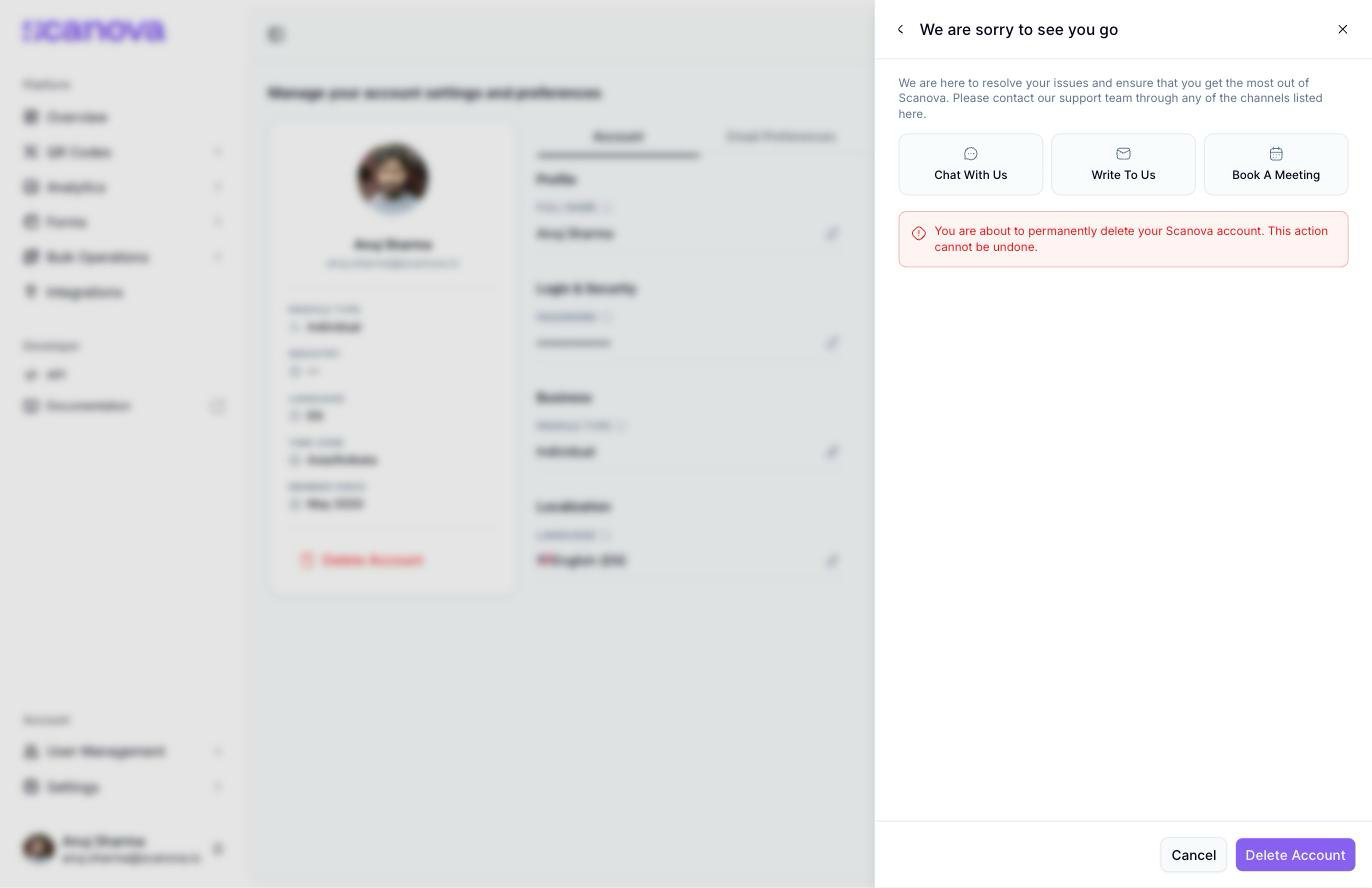
The support-contact retention screen shown for most other reasons
Confirming deletion
Proceeding from either retention screen (Continue with Deletion, or Delete Account) reaches the final Confirm account deletion step: an acknowledgement checkbox and a Current Password field. Confirm Delete stays disabled until both are filled in.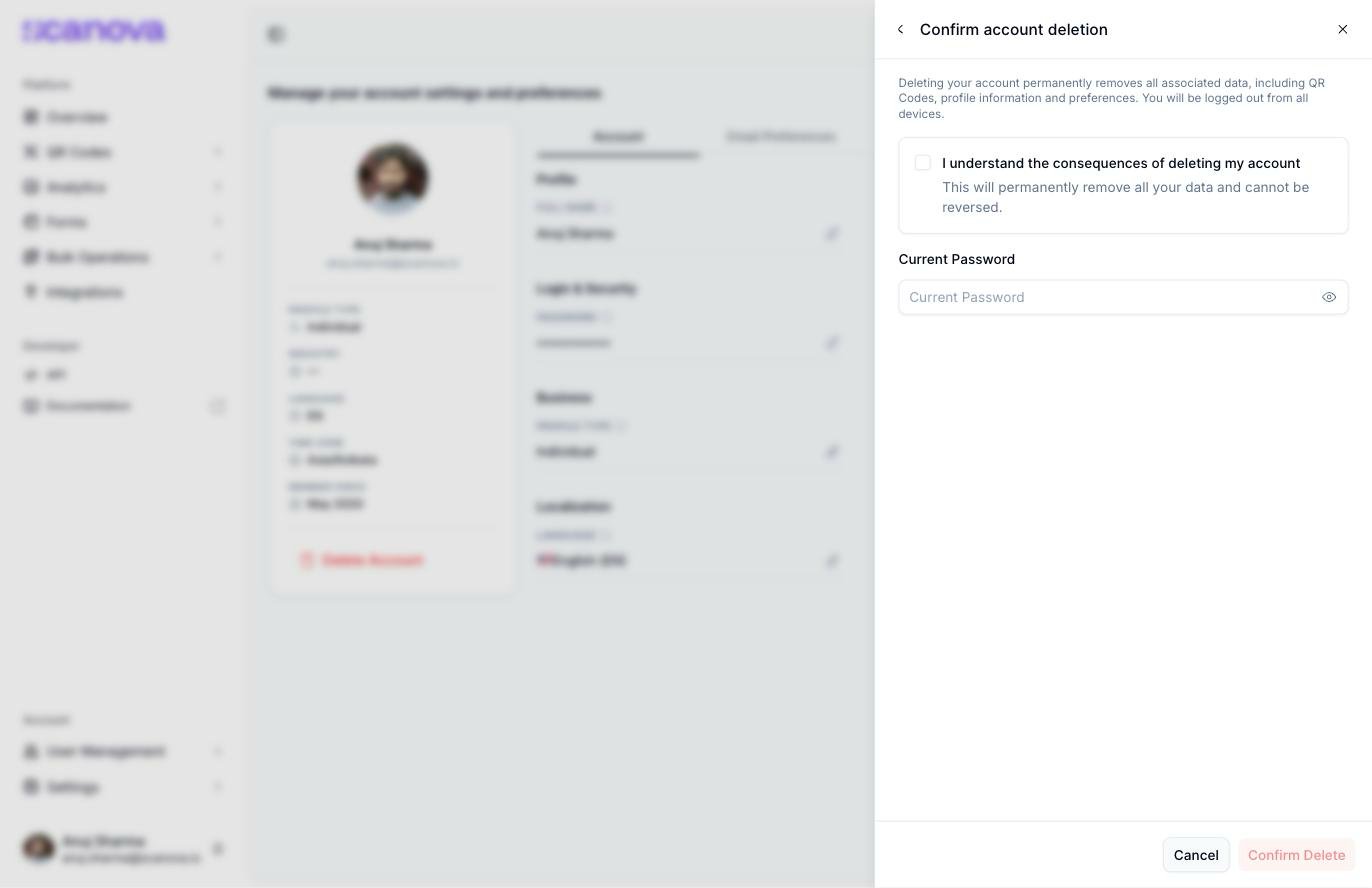
The final Confirm account deletion step
Related
- Profile & appearance — where the Delete Account link lives, alongside the rest of your account settings
- Subscription & billing — manage or downgrade your plan without deleting your account