

/integrations) is where you manage every third-party connection on your account and browse the catalog of services you can add. Each individual integration has its own setup guide — see the list under Related, below — this page covers the shared list, catalog, and connection-management UI they all share.
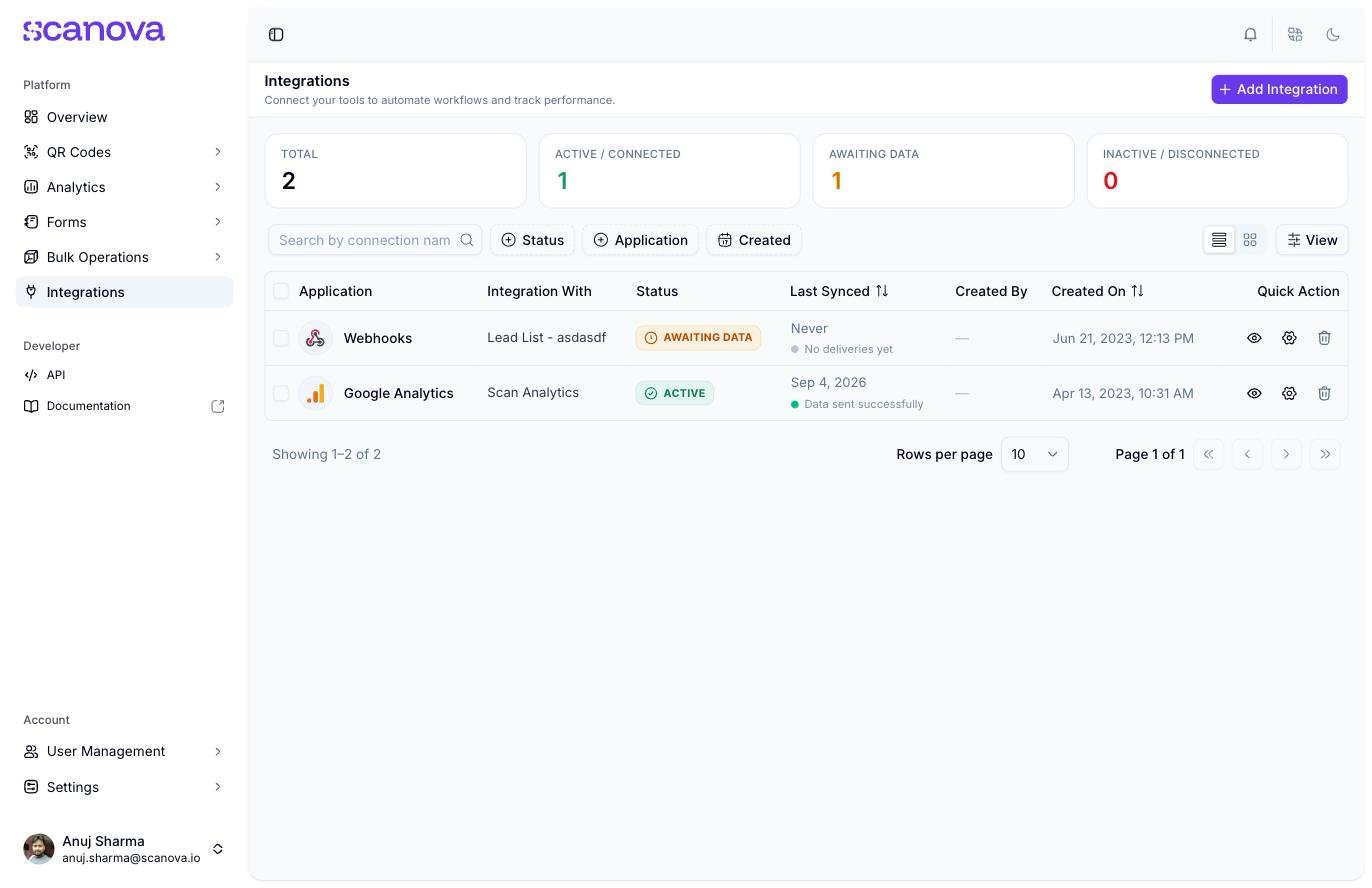
The Integrations page, listing every connection on the account
Your connections at a glance
Four stat cards summarize your account’s connections:- Total — every connection you’ve created, across all integrations
- Active / Connected — connections currently working
- Awaiting Data — connections that exist but haven’t sent or received anything yet (for example, a webhook with no deliveries)
- Inactive / Disconnected — connections that have been turned off or lost their authorization
Quick Actions
Each row (or card) has three Quick Actions:-
View (eye icon) — opens a read-only summary: what it’s integrated with, status, last synced time, delivery health, who created it and when, when it was last modified, and integration-specific fields (for example, a Google Analytics connection’s Measurement ID and scope)
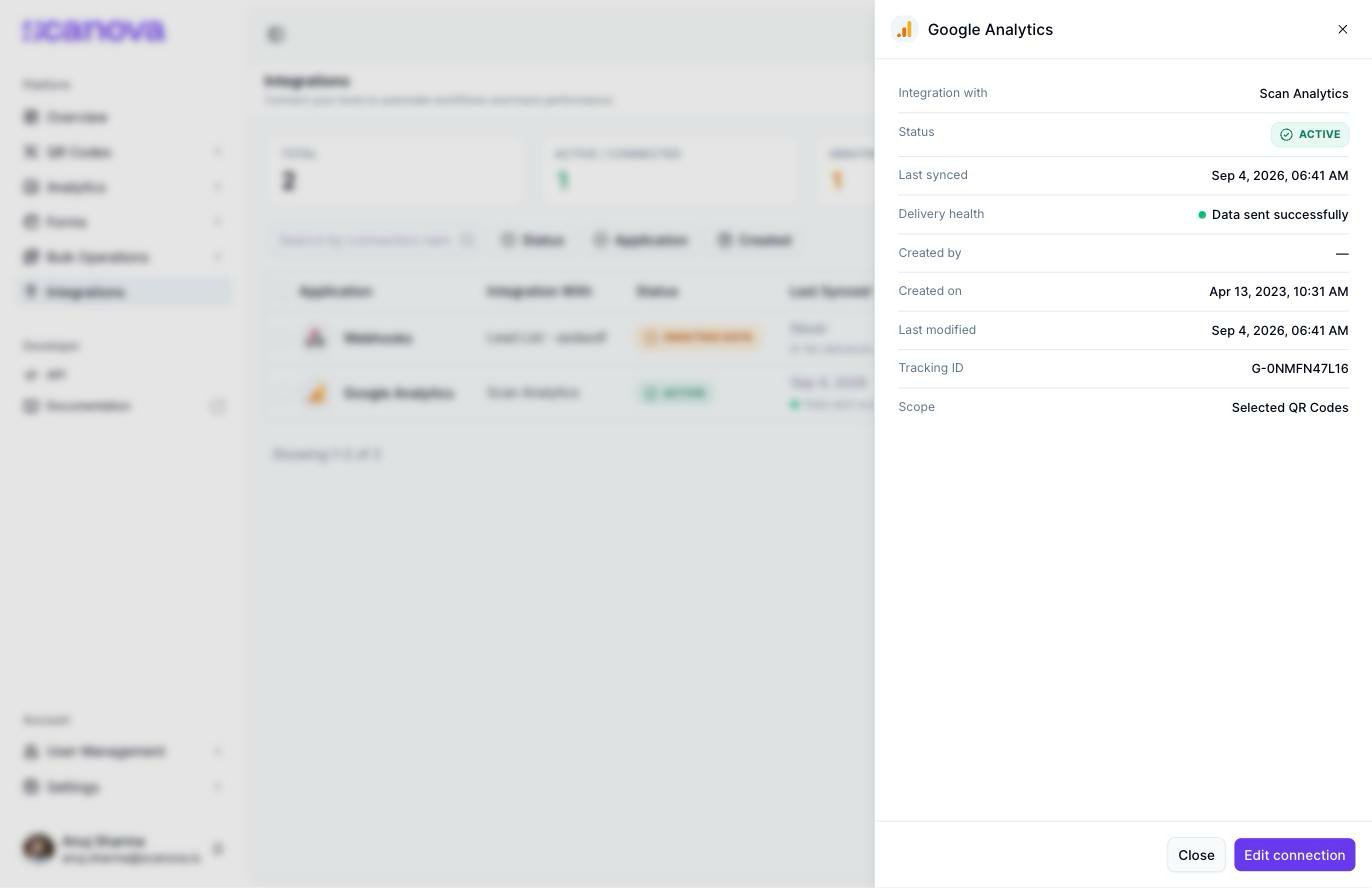
The read-only View drawer for a connection
- Edit connection (gear icon) — reopens that integration’s setup form, prefilled with the saved configuration
- Delete (trash icon) — removes the connection after a confirmation
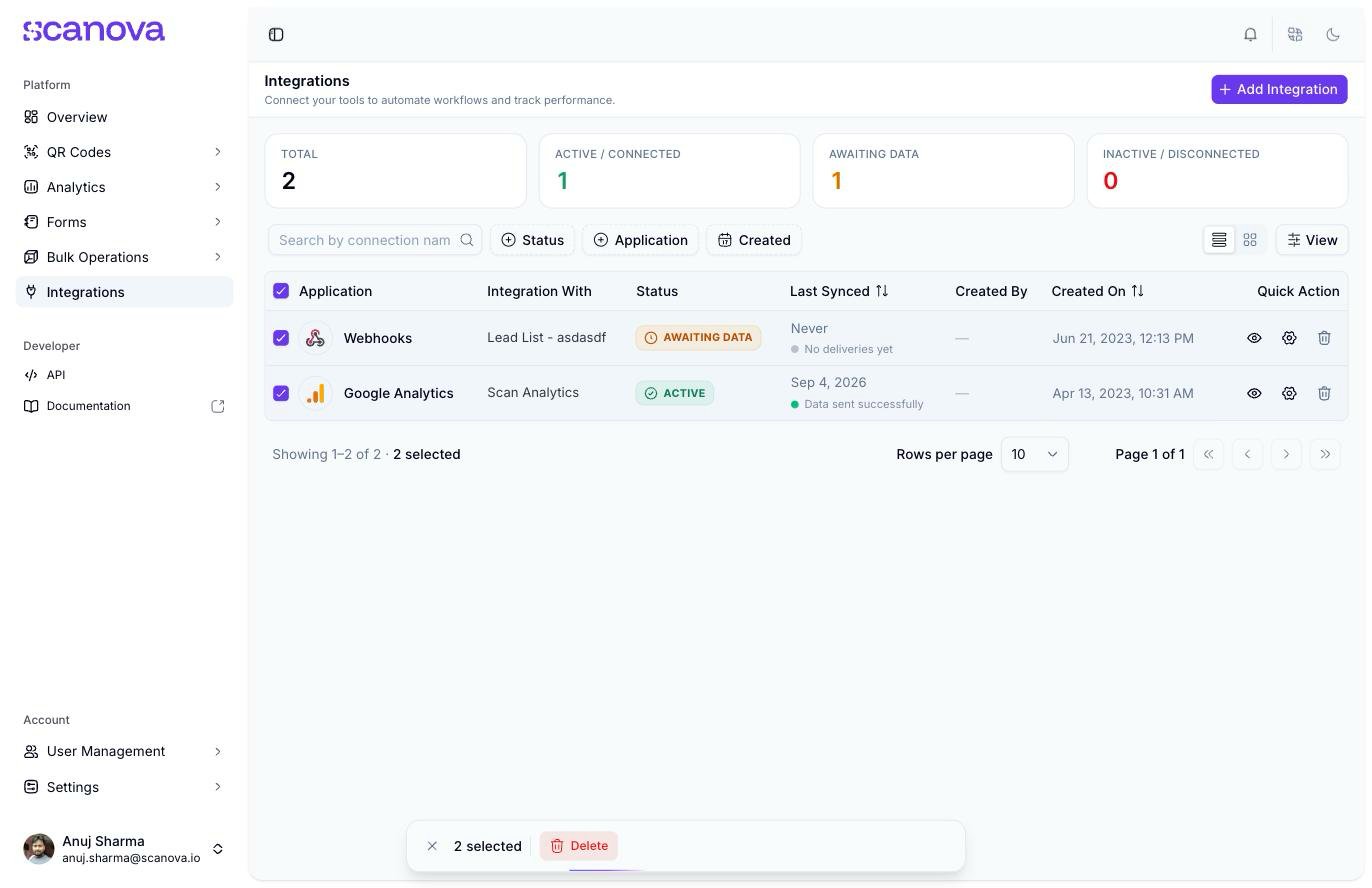
The bulk-select toolbar after selecting all connections
Adding a new integration
Select Add Integration to open the Connect an Integration catalog — every available service, grouped into Design, Marketing, and Automation categories (or All to see everything), with a search box to filter by name.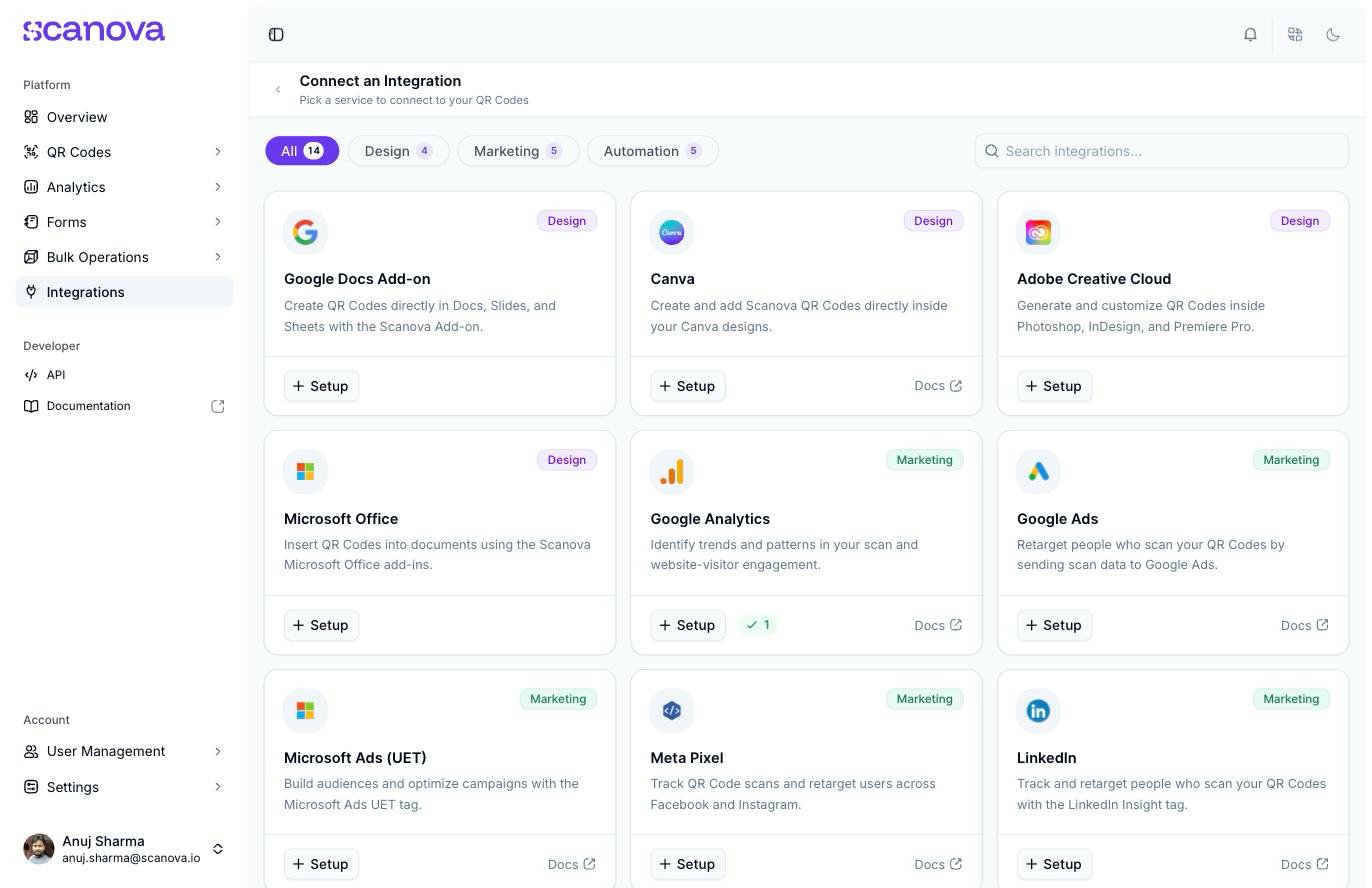
The full integration catalog
The Design category (Canva, Adobe, Google Docs, Microsoft Office) covers marketplace plugins with no data-sync connection — they don’t show up in the stat cards or connections table above, since there’s nothing to track. See each one’s own page for details.
Related
- Webhooks, Slack, Zapier, HubSpot — Automation-category integrations
- Google Analytics (GA4), Google Ads, Microsoft Ads, Meta Pixel, LinkedIn Ads — Marketing-category integrations
- Canva, Adobe, Google Docs, Microsoft Office — Design-category plugins
- MCP overview — the AI-agent integration, listed in the same catalog under Automation