

What switching actually means
“Classic” and “New Scanova” (this app) are Scanova’s two full platforms — an older Angular app and this Next.js one — not two editors for the same landing page.Preference.platform is a single field on your account, and moving it is a decision for the whole account, not an individual QR Code:
- Only the account owner can switch. A shared user (any non-owner role) sees a disabled Switch to Classic button in the sidebar footer, with a tooltip explaining that only the owner can move the whole account
- Switching moves everyone on the account together. If you have shared users, they all move to Classic with you — there’s no per-user opt-out
- It’s a platform switch, not an editor toggle. There is no per-QR-code or per-page “open in Classic” control anywhere in New Scanova
Switching from New Scanova to Classic
The control lives at the bottom of the sidebar: Switch to Classic. Selecting it (as the account owner) opens a confirmation dialog: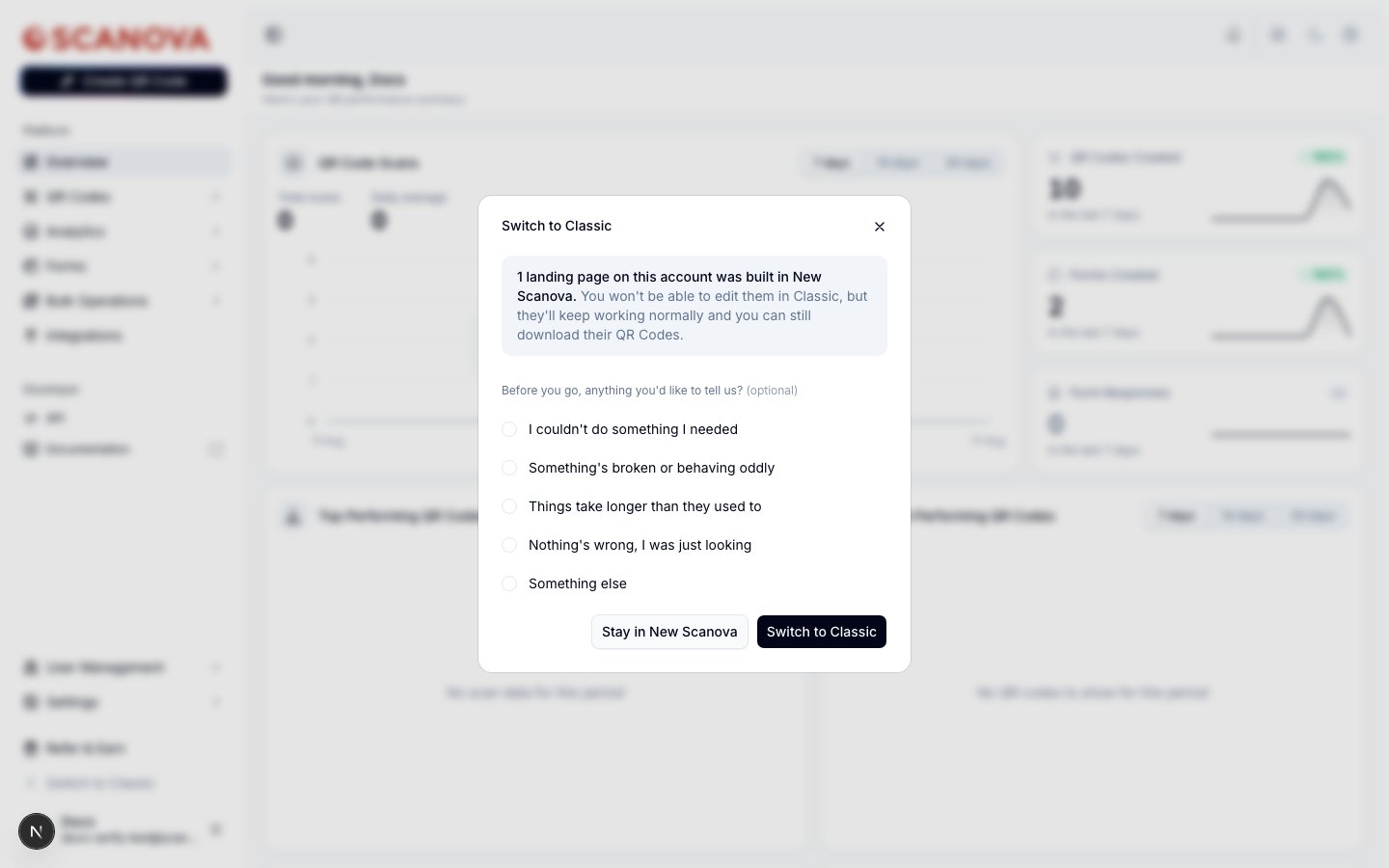
The Switch to Classic confirmation dialog — the consequence warning is account-specific and appears only when it applies
{N} landing page(s) on this account was/were built in New Scanova. You won’t be able to edit them in Classic, but they’ll keep working normally and you can still download their QR Codes.This is not “your colors will need to be reapplied” — it’s you can no longer edit that page’s content or design from Classic at all. The page keeps serving live traffic normally; you simply lose the ability to open it in Classic’s editor. If any teammates are on the account, a second line in the same dialog warns that they’ll all move to Classic with you. Before confirming, the dialog optionally asks why you’re leaving (missing something, something broken, performance, just exploring, or other) — answering is optional and doesn’t block the switch. Confirming triggers a real, immediate, one-way account migration, with a hard redirect to the legacy app.
Switching back from Classic to New Scanova
This direction is not self-service from within New Scanova — there is no “Switch to New” control in this app, because you’d already have to be on Classic to need it. The only path is: a shared user on Classic can request that the account owner move the account to New Scanova; the account owner is the one who actually completes the move, from within Classic.What’s preserved either direction
Related
- Quick Code vs. full Page — what a “page built in New Scanova” actually is, and why it can’t round-trip to Classic
- Support — if you’re unsure whether switching is right for your account, especially one with shared users, talk to support before confirming